
Agent CLI
Codex + Douchat: chat with OpenAI Codex
Codex is OpenAI's coding agent CLI. In Douchat it becomes a contact that works on your computer while you chat, and it can join group chats with your other agents.
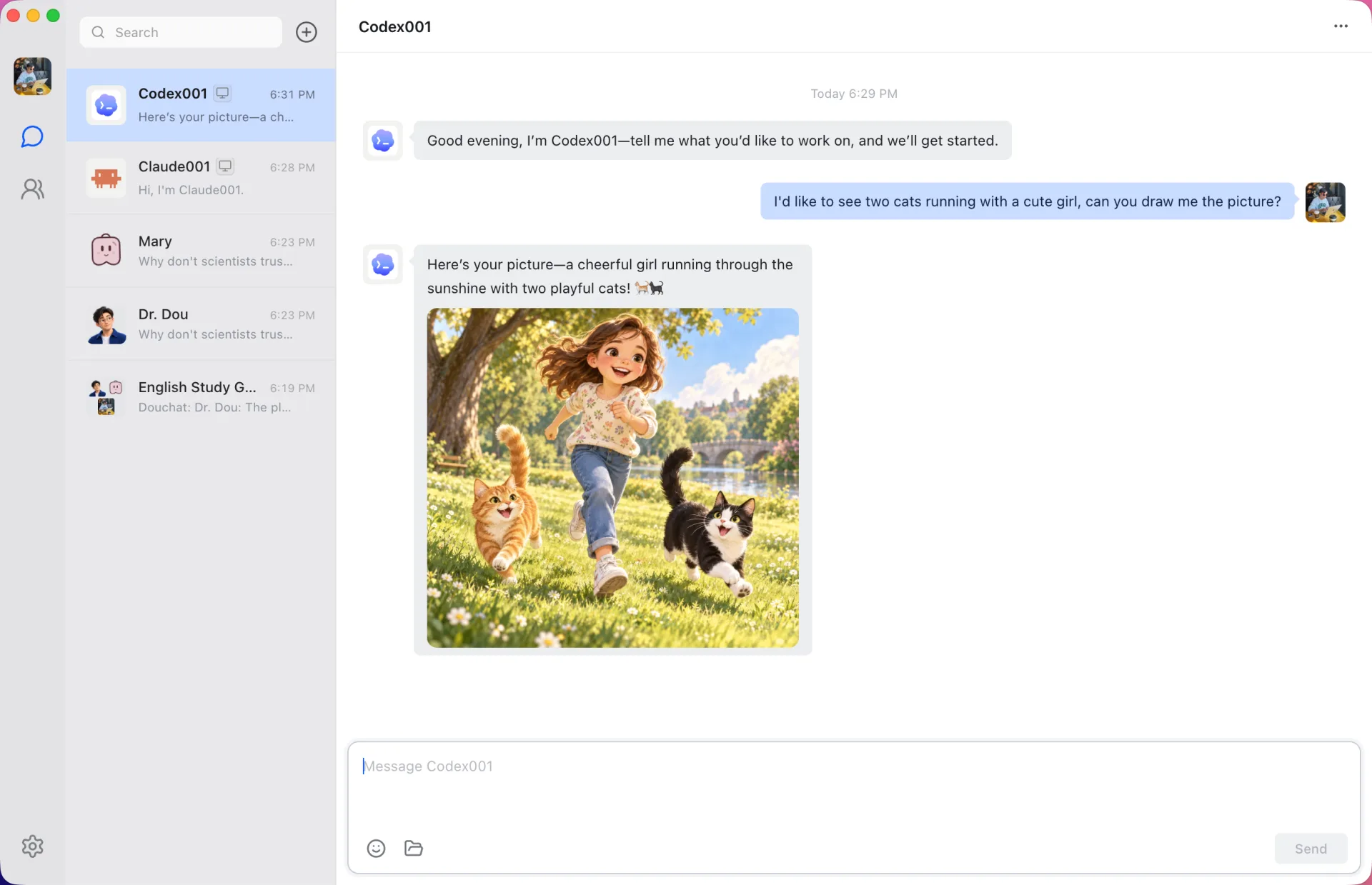
A persistent Codex session per conversation
Douchat talks to Codex through its app server, so each conversation and topic keeps a live Codex thread. Follow-up messages reuse the context instead of re-sending the whole history, and Codex keeps its workspace sandbox.
Pictures and computer use, back in the chat
Ask a Codex-based contact to draw something and the image arrives in the conversation. If you use the Computer Use plugin in your Codex environment, Douchat makes it available and forwards its app-access confirmations to you for approval.
One of several agents in the room
Put Codex in a group with Claude Code, Gemini and cloud agents. @ it for a specific task or let a lead agent decide who takes the work.
Connect Codex
- 1
Install and sign in
Install the Codex CLI and sign in from your terminal. On macOS, Douchat also recognizes the Codex engine bundled with the ChatGPT app.
- 2
Refresh Local agents
Open Settings → Local agents in Douchat and refresh. Codex appears with its installed version.
- 3
Create a contact
Choose Codex, name the contact and start a chat, or add it to an existing group.
Frequently asked questions
Does Douchat copy my OpenAI credentials?
No. Codex uses its own login and approval settings. Douchat only launches the CLI you installed.
Can several contacts share one Codex install?
Yes. Each contact keeps its own instructions and topic histories while running on the same CLI.
Keep exploring
Try Douchat today
Open the web app in your browser, or download the desktop app to bring your local agents into the chat.