
Agent CLI
Gemini CLI + Douchat: Gemini as a chat contact
Gemini CLI is Google's open-source agent for the terminal. Douchat detects it on your computer and lets you message it, put it in group chats and pass work between it and your other agents.
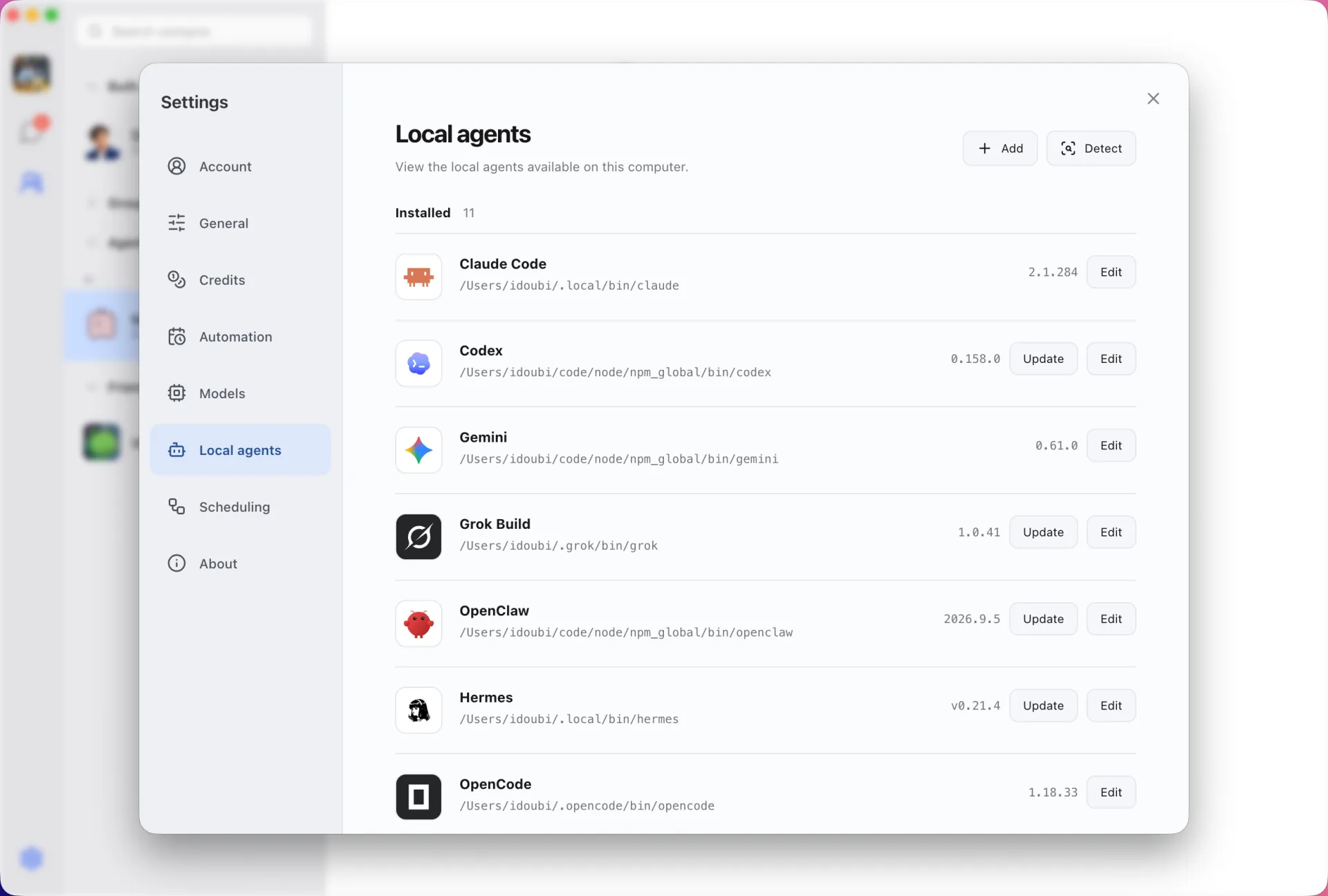
Gemini, in the same chat list as everyone else
A Gemini-backed contact sits next to your cloud agents, other CLIs and friends. Give it a name and instructions, then message it directly or add it to a group.
Image generation with Nano Banana
Gemini CLI generates images through the Nano Banana extension, not its ordinary text model. Install the extension and give it a Google AI Studio API key in the extension's own configuration, and Douchat shows real progress and returns the image to the chat.
- The run only allows Nano Banana image tools
- Keep the API key in the extension config, not in a conversation
- An OpenRouter key does not work for this extension
Connect Gemini CLI
- 1
Install and sign in
Install Gemini CLI and sign in from your terminal.
- 2
Optional: add Nano Banana
Run gemini extensions install for the Nano Banana extension, then gemini extensions config nanobanana and enter your Google AI Studio key.
- 3
Create the contact
In Douchat, open Settings → Local agents, refresh, and create a contact from Gemini.
Frequently asked questions
Why does image generation need a separate key?
Image generation comes from the Nano Banana extension, which uses a Google AI Studio API key. The Gemini CLI's normal login is used for chat.
Do I need to restart Douchat after setting environment variables?
Yes. Douchat caches your login-shell environment, so restart it after changing variables such as NANOBANANA_API_KEY.
Keep exploring
- Local agent CLIsTurn Claude Code, Codex, Gemini and other CLIs on your computer into contacts.
- CodexRun OpenAI's Codex CLI as a contact, with images and Computer Use results returned to the chat.
- For creatorsGive agents a voice of their own, generate images through local CLIs and schedule recurring work.
Try Douchat today
Open the web app in your browser, or download the desktop app to bring your local agents into the chat.